The Professional version of Powercopy possesses the ability to emulate a true file server! To implement this function follow these simple steps:
1. Open Windows Notepad (or a similar text editor).
2. Under the 'Files' drop-down shade select
'New', then 'Save As...'.
3. Select the down arrow key to the right of
the 'Save as type:' text-box and select the 'All Files
(*.*)' option.
4. In the 'File name:' text-box type 'pc.ini'
and click on the 'Save' button.
5. Locate the cursor in the upper left-hand corner
of the text-window and type '[ALIASTABLE]' followed by a carriage return.
The Alias Table is now created and ready to accept alias names for files,
folders, subdirectories and even complete hard drives.
6. Next choose alias names for any files or directories
that are commonly transferred from the server PC to other PCs requiring
service, backups or software updates.
7. Two examples are presented to demonstrate
the file-server functionality. For both home and business, the folder 'My
Documents' should be backed up often to the server PC (business) or to
another computer (home). For the second example, the server PC contains
a folder 'Software Updates' containing the latest software updates, driver
patches, etc., for keeping all client computers fully optimized for the
fastest and most efficient performance.
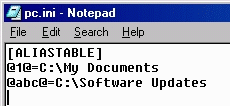
Note: Although alias names have few restrictions, it is wise to choose them according to the folder they represent and keep them as short as possible. Remember to always complete any new entry with a hard carriage return before saving the file. See below the alias names chosen for the two folders often accessed for file transfers.
To use the newly created file-server function alias names refer to 'The file server function'.
Note: The beauty of the Alias Table lies in
the fact that neither the server or client PCs 'know' where the actual
folder is when transfers are made using the /g parameter!