


| Datapower GbR, www.datapower.de |
| Powercopy Version
2.1 - User's Guide
for physical copying of hard disks and creating images |
1.
General
Functional Description
[Top
Of Page]
Among
the various functions available,
Powercopy also allows the physical copying of entire hard disks and
single partitions, including
creating images on a sector basis. Powercopy
is easy to use.
Powercopy enables you to copy all
operating systems (DOS,
WfW, Windows 9x/ME, NT, Win2000, XP, LINUX, UNIX, OS/2 ...).
You may call up
additional
instructional sequences here
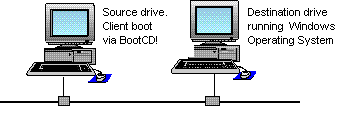
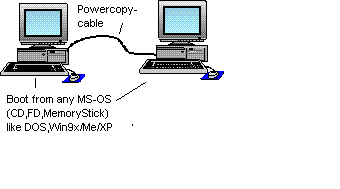
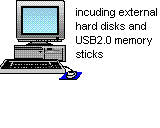
There is a total of three copying and three transfer methods plus a variety of individual functions available:
Copying
methods:
- Creation of images - All sectors of a selected hard disk or a partition/partition area are compressed and saved as a so-called image file on another hard disk or other partition. This image file will then again be decompressed if restored at a later time on the original (or any other) hard disk, so that all data on the hard disk will be restored to the original state
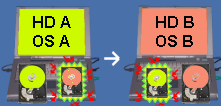
- 1:1 Copying of hard disk - The hard disk is copied (cloned) bit by bit onto another hard disk, so that the latter one may also be used for booting. A Restore is also possible.
- Creation
of a secured backup with restore function - Using this
copying method, a hard disk is copied 1:1, just as in the case of the
aforementioned method. However, this time the backup is offset by the
initial ten sectors, i.e., the first sector of the backup hard disk
(target hard disk) is marked as backup, and data are stored in the
other sectors which will protect the hard disk against logical
overwriting.
Advantage: With this type of backup method, Powercopy protects your hard disk, which has not been marked, from being unintentionally overwritten. The backup hard disk is not bootable, by intention, and is thus protected against unauthorized usage (e.g. operating system). Although the backup hard disk is not bootable, the creation of a backup hard disk includes many verify functions which rule out almost any application errors.
 |
 |
 |
For all copying methods a subsequent or separate comparison between the source hard disk and the data on the target hard disk is possible. This feature is indispensable for modern and safe data storage. |
The following Review Table shows the core functions of the large number of individual functions of the various program versions:
|
Versions
Powercopy Hard Disk Copy Functions |
Demo Version 1) Additional entries by user necessary 2) Slow, max. 20 files at 1 MB |
Home- Clone (15% slower) |
Pro- Clone |
Pro- Logic (File trans- fer) |
Pro- PLUS |
|||
| Copying methods | x 1) | |||||||
| * 1:1 Copying of hard disk (Clone) | |
x |
x |
|||||
| * Limiting copy area
to partition limits |
x |
x |
x |
|||||
| * 1:1 protected Backup - safe procedure | X |
|||||||
| * Creating an image
of individual partitions |
X |
X |
||||||
| * Creating
an image file of an entire hard disk |
x |
x |
x |
|||||
| * Direct copying of partitions (partition to partition) |
x |
x |
||||||
| * Support copying to larger hard disk |
x |
x |
x |
|||||
| Transfer methods | ||||||||
| * locally within computer including external hard disks/memory sticks | x |
x |
x |
x |
||||
| * via network (Image) | x |
x |
||||||
| * via PC-to-PC-direct cable connection (parallel interface) | x 2) |
X |
X |
|||||
| Individual functions | ||||||||
| * Restore a Partition or Harddisk |
x 1) |
X(hard disk only) |
X |
X |
||||
| * Separate compare operation between source data and target data | x |
x |
||||||
| * Washing of hard
disk to reduce volume
and running time |
x |
x |
x |
|||||
| * Read error processing | x |
x |
x |
x |
||||
| * Erasing or identifying/marking hard disks | x |
x |
x |
|||||
| * CRC32 check sum monitoring | x |
x |
||||||
| * Test
/ simulation to
determine image size and run-time |
x |
x |
||||||
| * Multilingual (German/English reversible with F5 key in main function menu) | x |
x |
x |
x |
x |
|||
| * Booting, also from USB memory sticks (depending on PC-BIOS) | x |
x |
||||||
| * Copying and restoring of images on USB memory sticks | x 1) |
x |
x |
x |
||||
| * Automatic network adaptation to a Windows network (TCP/IP or NETBEUI protocol) using the Powercopy BOOTCD | x |
x |
||||||
| * Shield hard disk | X |
|||||||
| * Automatic batch processing, may be carried out even without any user interaction | X |
X |
||||||
| * Support for all MS operating systems and booting via DOS | x |
x |
x |
x |
x |
The Free-Version will run at full speed but there will be demo interrupts and delays during a copy operation. It may be used only for evaluation purposes. The time-limited test version includes all functions.
Copying or restoring a hard disk must take place only under DOS (MS-DOS, Free-DOS) if the target hard disk contains the operating system (components). Copying may be performed both user-supported (dialog) as well as in batch-processing.
The transfer speed for the local copying within one computer is dependent on the speed of the installed hard disks. Normally it can be assumed that Powercopy can copy at a rate of approx. 70 % of the so-called Burst(maximum) transfer rate (dependent on hard disk controller).
Rule of thumb: copying speed = (Burst rate*0.70)/2; (/2 reading of source hard disk, writing on target hard disk ).
The image is created by using the latest state-of-the art packing technology at extremely high transfer rates!
Copying via the PC direct cable link is limited to a maximum possible data transfer rate of a gross total of 1.5 Mbytes/sec. when using the parallel interface.
The copying process is followed by an integrated read-after-write mode of operation which may be performed either immediately or in a separate process in order to make sure that all data are correctly written. Further parameters may be turned on or off.
Powercopy provides a range of additional important safety features, especially in the Backup Mode or Restore Mode and Image creation process to prevent unintentional overwriting. Nevertheless you need to be very careful in using this tool since data are overwritten physically (sector by sector), and not logically. This means that if the tool is not properly used, all data on the target hard disk will be lost.
Important notes:
- It is essential that you first read the detailed User's Guide for Copying Hard Disks as well as the Licensing Terms before you use Powercopy in a productive way.
- According
to the Licensing terms, Datapower
GbR does not accept any claims whatsoever for
indemnity.
- It is highly recommended that you perform some test runs to ensure your system meets the requirements. If you have hard disks of less than 8 GB capacity, make sure they are of the same geometry when using these for copying (refer to sub-section 1.1 System Requirements)
- Make sure you select the correct copy functions (Function Menu).
- Powercopy Versions older than V2.1, where so-called "extended partitions" have been created, these appear in summarized form on the Overview of Partitions of a hard disk, followed by the individual sub-drives. In this case, an entire "extended partition" or the corresponding individual drives may be copied individually !
- Make
sure you select the correct target hard disk when using the "Copy
hard disk" function!
To see the drive letters which are assigned to the respective physical disk drive, proceed as follows:
Win9x/ME: Start ->Settings -> Control Panel -> System ->DeviceManager -> DiskDrives -> <select disk> -> Properties -> Settings
Windows 2000/XP: Start -> Run-> <Enter diskmgmt.msc>
Windows NT: Start->Programs->Administrative Tools>DiskAdministrator
- The drive letters in a Windows operating system may differ from that of a DOS operating system. This is especially important to bear in mind when restoring an image file under DOS. From Powercopy version V2.1Ri we implemented a feature to show the (NT/2000/XP..) Drive Mapping(function key F7)
- It is assumed that a suitable backup system exists if you use the copying function as an integral part of your system and data backup (e.g. Grandfather-Father-Son principle).
- This procedure applies only to DOS: Normally code letters 1 through 3 should be selected in the Boot Menu; in the event that booting will not be possible in this latter case, then the alternative parameters 4 through 6 should be selected.
- If
you
wish to accelerate the copying
process considerably,
you may "wash" your hard disk
for each drive from time to time
(refer to Function Control Code "W")
. Here
the data trash is written onto
the free areas of a drive disk with
highly compressed characters.
- When creating an image file, make sure that, if at all possible, this file will not be located on the same hard disk for runtime reasons and that enough disk space will be available. If you wish to determine the size and runtime for the creation of an image file, select Function Control "D".
- Booting must be performed via the DOS boot CD/FD/Memory Sticks only if your Start operating system is located on the copying area.
For reasons of runtime on the one hand, and because of a self-overwriting or self-backup risk on the other hand (e.g. source 'hard disk partition C:' Target images also C:\<Path>\<Image name>) saving of images should always take place on a SEPARATE medium. This may be a second hard disk, an external hard disk or a hard disk on another computer (network, second computer via PC direct cable connection).
- You may use
HELP key F1 for the respective sequential steps!
- For selecting
the various functions, you may either use the arrow keys (only on
WinNT, 2000, XP) or left-click them with your mouse and make your selection
with a double-click.
After the selection has been made, you may confirm this selection by pressing a Function key as requested, a letter, the RETURN key or by right-clicking your mouse. - Switch language: With
the F5 Function key, you may change the language in the Function Menu,
such as from English to German.
1.1 System requirements for physical copying of hard disks [Top Of Page]
- Operating systems supported: MS WfW, Win9x, ME, 2000, NT, XP. (Free DOS is an integral part of the delivery package)
- No other program except Powercopy may run on the computer (except on the target computer in the network).
- If you want to use the PC direct-linkage feature of Powercopy, a Powercopy cable is required, which is an integral part of Powercopy Professional PLUS and Multi-CLONE versions.
- The copying of hard disks using Powercopy is basically independent of the computer, operating system or file formats used (All standard file systems, such as FAT16, FAT32, NTFS or Raidlevels 0, 1, 2 ,5 are supported.)
- Because of performance reasons USB2.0 is required, when using external USB2.0 hard disks. If not available, we recommend Add-On Controllers with NEC chipsets.
Additionally,
only if you use the
Powercopy DOS BootCD:
|
Supported Storage Media (target media to save image files):
- internal or external hard disk drives such as P-ATA (IDE), S-ATA, SCSI, IEEE 1394 (FireWire), USB 1.0 / 2.0 or PC-Card devices.
- Network shares
- CD-R (RW), DVD+/-R(RW) , requires installed third party DVD Burning software.
- ZIP®, Jazz® and other exchangeable data storage
- Installation of Powercopy
- Booting in DOS: No Installation/De-installation required! You will need this function if you have to perform either a restore operation of an 'entire hard disk' or a Partition on which your default operating system is stored.
- Insert CD (If the installation process does not start automatically, right-click with your mouse CD drive)
- Double-click on
"p_inst-...." and follow further instructions.
- Powercopy can then be started with a double click from the "Powercopy" directory on pc.exe (for 16-bit OS) or on pc32.exe (for 32-bit Operating Systems).
3. Main Procedure for all Copying Processes [Top Of Page]
3.1. Main procedures3.1.1 Main procedure using MS Windows operating system [Top Of Page]
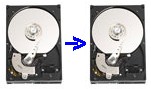 |
3.1.1-A: Example for 1:1 copying of an entire hard disk [Top Of Page] |
1. Start Powercopy in the "Powercopy" directory by double-clicking pc.exe (for 16-bit operating systems such as Win 95/98/ME) or pc32.exe (for 32-bit operating systems such as NT/200x/XP). The FUNCTION MENU will then be displayed.
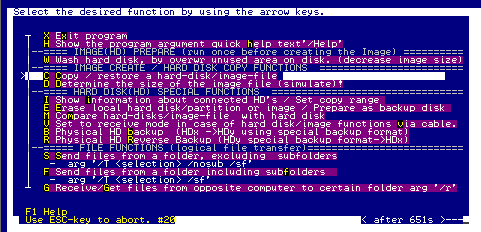
2. Select function 'C'opy in the FUNCTION MENU by pressing the "C"-Key
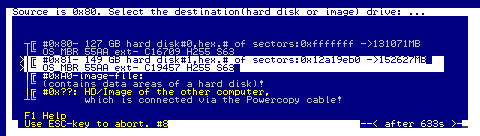
3. Selection of source hard disk (select by using arrow keys and press RETURN key)
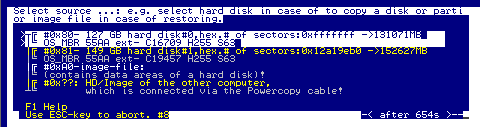
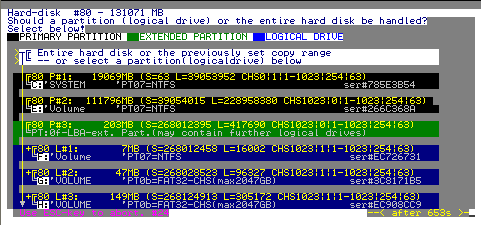
4. Selection of target hard disk (select by using arrow keys and press RETURN key)
5. Decide if you wish to perform a comparison operation between the source and target hard disks:
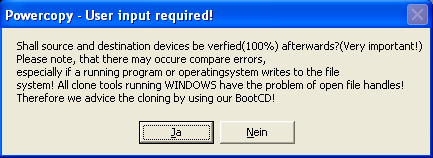 |
Please note: If you are
copying a
Partition which contains the currently active operating system or any
other drive which could not be locked
by Powercopy, the compare
function
will fail! Don't worry about. Because for the most part, temporary files such as the pagefile.sys (swap file) and others will continuously be changed by an active OS. This is why Powercopy reports differences. After cloning, connect the cloned drive as stand-alone disk and boot from it. After logon to this system, run system tool scandisk on WIN9x/ME or chkdsk on NT/2000/XP OS for all of your volumes on this hard disk. If there are no errors, the HD cloning was successfull. |
| The
easiest and best way of cloning the default operating system with no
compare errors - except in case
of a hardware failure - is to boot with the Powercopy
BootCD. Other best working methods are. A) Boot with Barts PE XPBoot CD, see Internet B) Install your Windows OS on a second hard disk/ USB memory stick. Boot from second disk and clone first disk. C) Use Windows XP-PE "Preinstallation environment" |
|

7. Display of result
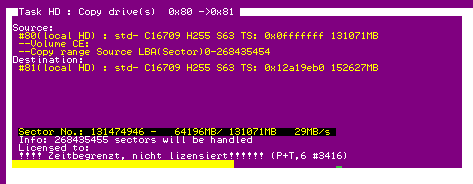
If the copying process was flawless, an "OK" is displayed at the end.
 |
3.1.1-B: Example for the creation of images of an entire hard disk [Top Of Page] |
1. Start Powercopy by double-clicking in the "Powercopy" directory on pc.exe (for a 16-Bit OS) or pc32.exe (for a 32-Bit OS)
2. Select "C" for copying in the Function Menu
3. Select source hard disk
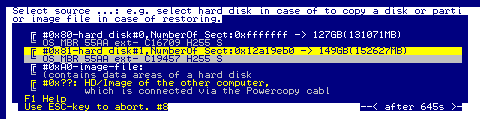
- The following display will be shown „Select source hard disk“: (Each installed hard disk is shown in two lines; Important information for the user: At the beginning of the first line, you will see the current number of the respective hard disk #0x80 (through 87); at the end of the first line the hard disk size will be displayed in GB and MB);
- Select the desired hard disk by moving the arrow keys to the correct position; press RETURN key;
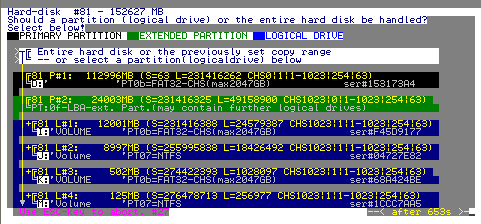
- A
green
window will appear showing the assigned partitions and the heading
"Should a partition (logical drive) or the entire hard disk be handled?
NT/2000/XP
DriveLetters
are
shown only if you use pc32.exe(NT/2000/XP),
or if you have loaded the
Driveletter Map-file of Powercopy using pc.exe by means of the F7 key
(Powercopy V2.1Rg or newer)!
To load this file press the key F7 at function-menu level. This file named PCDRVLTR.LST is created whenever you run Powercopy pc32.exe on Windows NT/2000/XP and at least if you have selected the hard disk information function. PCDRVLTR.LST can be located in the folder, where you run Powercopy pc32.exe on Windows NT/2000/XP. Please note, that this file has to be created anew after you have created or changed any partitions on disk. Otherwise the displayed drive letters will be inaccurate. Further note: if you have TWO or more identical cloned hard disks in your system, the displayed Drive-Map will be incorrect, because displaying the Map Drive Letters is based on the serial number of a partition.
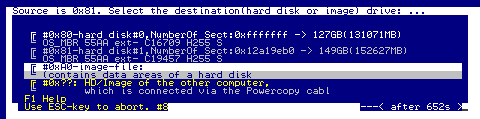
4. Selection of target drive and directory where image file is to be saved (do not select the hard disk but line "#0xA0-image-file";
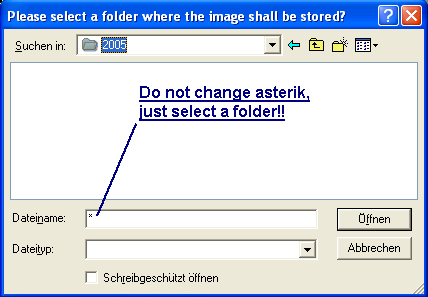 After you have selected the desired folder klick on "Open" |
Only on Powercopy BootCD / DOS / Win9x / ME: Please note!
If you copy disks the usage of the mouse is not supported in those cases. At file/folder selection dialog a single dot ' . ' means select current directory. A double dot ' . . 'means select previous directory. See also F1 Function Key!. |


5. Decide if a comparing operation between the source and the target hard disks should be performed
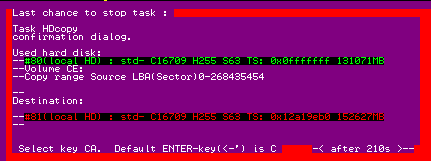
6. Before this operation is carried out, you will see the message "Last chance to stop task"; if data are OK, enter "C" or press RETURN key. Copy process is running!
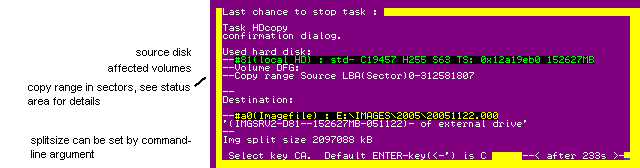
red frame - urgent warning before writing to physical disk e.g. at a disk to disk copy , image to disk copy or at erase disk/partition/partitionentry functions.
7. Display of Copy Progress
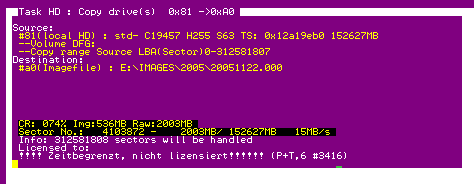
++++From here on, only the major changes of progress in comparison with process A are described! ++++
 |
3.1.1-C: Example for the creation of images of a partition (drive letter/volume) [Top Of Page] |
After selecting the source hard disk, a green window will pop up showing how the hard disk is divided up into the various partitions. Instead of selecting an entire hard disk, choose a partition (drive letter) in this case, for example: LW C (P#1...). In so-called "extended partitions" several partitions are combined. Here you may select either the entire "extended partition" or the associated individual partitions (drive letters).
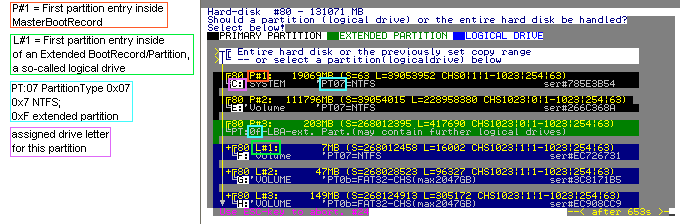
3.1.1-D: Creating an image via a network: [Top Of Page]
| Preparation:
Destination storage: The directory in which the image file is to be stored must be shared within the network. (right-click the directory, Select "Sharing.." and enter "Powercopy" as Share Name; share directory); Set the permissions of the shared folder to read-write access. XP Professional differs from the Home edition. In case of the Home edition, check the "Allow network users to change my files" |
XP
Home Edition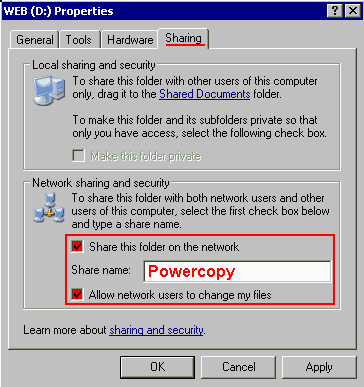 |
Win
9x/ME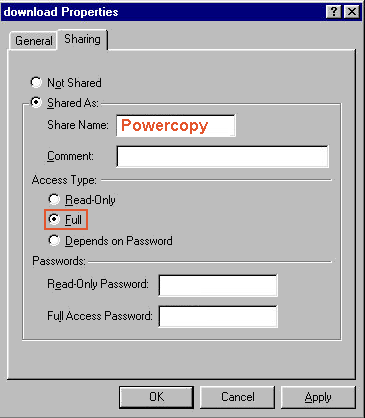 |
XP professional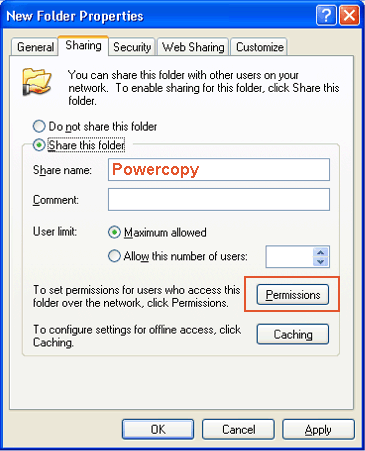 |
Map
a folder. Method A
|
1. |
Click My Network Places, and then click Entire Network. |
|
2. |
Click Microsoft Windows Network. |
|
3. |
Click the name of the workgroup you created when you set up your home network (most likely Mshome); then click the computer that contains the shared folder . |
| 4. |
Right-click shared
folder
Powercopy; select 'Map Network
Drive' |
| 5. |
Select Driveletter
'x:' |
Map
a folder. Method B Command line method (works on every MS operating
system)
|
1. |
Click Start -> Run -> enter cmd
(Enter
Command on Win 9x/Me) |
|
2. |
Enter "net view " The list of computers of you workgroup will be shown. |
|
3. |
Enter "net view \\<computername>" <computername> is the name of the computer, on which you shared the images. Enter without brackets |
| 4. |
Enter "net use x: \\<computername>\Powercopy |
| 5. |
Drive x
should now be available to use. |
If you cannot store or read any file, check the permissions of the shared folder. Most of the time read-only flag was set.
See also Microsoft articles:
http://www.microsoft.com/technet/prodtechnol/winxppro/maintain/filesharing.mspx
http://support.microsoft.com/default.aspx?scid=kb;en-us;301281&sd=tech
4. Same procedure as under B, with the exception that drive disk "X" is selected, followed by selecting the previously defined Directory. Here you may call up a more detailed instruction sequence..
| 3.1.1-E:
Copying/Creating of an image via PC
direct data link [Top
Of Page] (only in Professional PLUS and MULTI-CLONE Versions) |
Precondition: Use Powercopy special cable to connect both computers;
 |
by use of the Powercopy cable |
3.1.1-E1:
1:1 copying of a hard disk via
PC direct connection [Top
Of Page] (starting from dialogue entry on source computer) |
4. Selection of target hard disk
Here you may call up a more detailed instruction sequence.
|
 |
by use of the Powercopy cable |
3.1.1-E2: Creating images via PC direct
cable connection [Top
Of Page] (starting from entry of dialogue on source computer) |
4. Selection of target hard disk/Directory
Here you may call up a more detailed instruction sequence.
 |
Peculiarities
in using copy function "B" (Backup ) or "R"
(Restore) [Top
Of Page] (only for Professional PLUS and MULTI-CLONE Versions) |
3.1.1-F: This copy function is used to get a 1:1 copy of a hard disk onto a second hard disk and to obtain two important safety features at the same time.
- Procedural
safety
as a result of a number of checks to
make sure an unintentional
overwriting of a hard disk is ruled out
- The target(Backup) hard disk has been identified and protected in such a way that the file system on this backuped disk is not visible to the OS or an application!
You will find a detailed description in the Powercopy "Marking_Backup.htm" file which gives a fundamental description on IDE hard disks.
Procedure: The procedure is the same as in Example A "1:1 copying of entire hard disks", except that Function parameter "B" for Backup and "R" for Restore must be used for this special copy function..
Here you may call up a more detailed instruction sequence.
3.1.2 Restoring of hard disks/Image files [Top Of Page]
Following the "Last chance to stop task" window, the window entitled "Enter new Series Number...?" will appear. If you re-write the partition to its original location, then select "N(o)".
However, if you wish to restore the partition onto a new hard disk or another hard disk area, a Selection Menu will appear in which you may select the target areas. You will find a detailled description in the "Store Partitions.htm" file on the CD supplied with the shipment.
You may call up a detailed instruction sequence for additional restore operations by clicking on the "Command strings.htm" file in the Powercopy directory.
3.2 Comparing source and target data [Top Of Page]
Function "M" (Compare) must be selected for the separate comparison operation. The procedure is almost the same as for the other functions.
To call this function makes only sense if you want to check whether the data on the Disk/Partition have changed. This function was especially designed for pc vendors.
Example: You wish to copy a disk to an image file and then to a second HD. After copying to a second disk, you can perform a separate compare operation with your master. Because most of the time no errors on a compare will occur, this may save time e.g. if you are in a hurry!
Here you may call up a more detailed instruction sequence.
3.3 DOS procedure [Top Of Page]
The CD which is included in the delivery package may also be used to boot the computer in DOS mode. If a Restore of a partition is performed which contains the start operating system, booting must be performed with the boot CD. Many users, however, use the DOS mode in booting, because this mode of operation is often distinctly faster.
| Important information: External USB or Firewire hard disks must not be formatted with NTFS, because creating images will not be possible on these data media! You can easily format a hard disk to FAT32 by using our template images located on the Powercopy BootCD. |
| Important
note on SPEED: If the disk-to-disk copy speed is less than 8 MB per second, you can either try to enable the UDMA driver inside the "Options Menu" or to clone disk on a system which has native Int13ext Bios UDMA support. Another simple way is to insert an ATA/SATA controller with UDMA Controller Bios Support (e.g. Vendor Promise). This even works on more than 10-year old computers. As an average, normal copy speed is higher than 20 MB per second or 72GB an hour. Disk-to-image copy which is located on an external drive should be higher than 10 MB per second. The highest performance you will achieve in creating a hard disk image, is to store it on a second hard disk connected to the internal controller. |
Procedure:
1. Insert Boot CD into drive
2. Start computer; The following BOOT MENU will appear:
| ****************************************************************************** V2.1 Powercopy Boot Menu 1 of 3 ****************************************************************************** I would like to boot this computer and I need ... (used drivers) 1** a default boot (UMBPCI runs on almost every systemen) 2 =1+ support for USB2.0 harddisks, memorysticks (USBASPI UMBPCI) 3 =1+ support for FireWire harddisks (SBP2ASPI UMBPCI) ---alternative, if 1,2,3 should not work on your system 4 a default boot [alternative] (UMBPCI LOWDMA) 5 =4+ support for USB2.0 hard disks, memorysticks (USBASPI UMBPCI) 6 =4+ support for FireWire harddisks (SBP2ASPI UMBPCI) 7 no memoryarea for drivers between 640k and 1MB (HIGHMEM only) 0 only an simple access to my system.(no powercopy) (no EMM386, no HIMEM) Select 1 - 6 if you want to use Powercopy. The default selection is 1. (RETURN key) 2005 Copyright DATAPOWER Germany ****************************************************************************** A network connection can be established with options 1,2,3,4,5,6 |
Select
the
type of communication.
Normally code number "1" should be selected as standard.
Select figures 2 and 3 if you require access to an external hard disk.
The driver names which are integrated during the boot start can be seen
on the right side.
If booting does not proceed properly on your computer, then you have
the option to select figures 4,5,6 instead of 1,2,3.
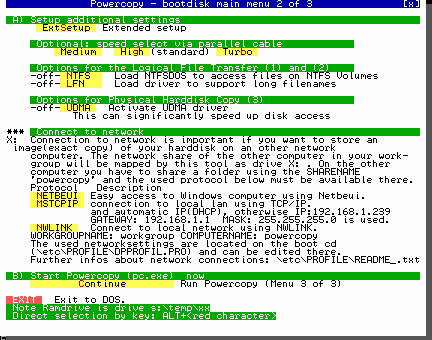
If the copy functions are not performed via the network, "additional settings" may be performed in the OPTION MENU. Otherwise, click "continue".
The function menu will appear.
From this point on, the procedure is largely identical with the previously described procedures!
Here you may call up a more detailed instruction sequence.
DOS procedure via network:
| Important
note: If the shared folder resides on an XP/200x client and the powercopy copy speed is less then 3MB/s, you should install the 2000/XP_Patch located inside folder FAST_DOS_TCPIP_to_XP_Server on the Powercopy BootCD. |
The following process takes place for the network connection:
- Window "Running Network Client"
:
Normally select "OK".
- Window "Profile OK": Normally select "OK".
- Window "Autodetect your PCI network adapter": Normally
select "Auto". In the event
you
are asked where the updated list of network interface cards
is to be saved, select RAMDISK.
- If
dialog " Please
select which adapter to use " should appear, then
multiple network cards were found.
Select the appropriate card.
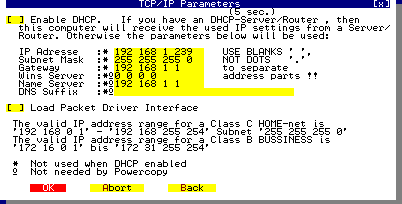
If there is no DHCP Server in your Network available, disable the DHCP checkbox, enter the required network addresses and select OK.
Pay attention that in case of a SW or HW firewall the entered IP Address is permitted by firewall settings.
Additional information on this subject can be found on our Internet Powercopy FAQ Help pages; Activate or deactivate DHCP;
Then window "Identification Settings" will appear:
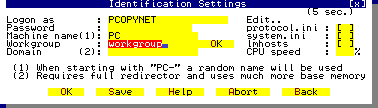
Here, enter your Windows work group name: E.g. Mshome is likely to be the name and select OK.
If the network connection was successful, the option menu will appear again . If this is not the case, the network connection was not successful (For more information, see www.datapower.de / FAQ).
Powercopy (pc.exe) will automatically start when clicking on "Continue" .
From this point on, the logical procedure is the same as described previously for the MS Windows mode.
Here you may call up a more detailed instruction sequence.
3.4 Additional functions of Powercopy [Top Of Page]
Depending on the type of version, Powercopy has a number of additional functions:
3.4.1 Erasing hard disks/hard disk areas [Top Of Page]
By selecting function code "E" in the Function Menu, Powercopy provides a range of erasing and identifying functions.
First select the drive on which you intend to perform a delete operation.
Window "HD-Clear... information" will appear.

Window "What should be cleared or removed" will appear. Please read the text thoroughly. Select the desired function.
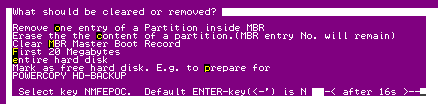
If you enter "c", the partition area will be erased sector by sector, but the Master Boot Record entry will remain; by pressing "c", the partition entry may then be deleted. This is the 'Data Shredder Function' clearing the entire content of a partition region sector by sector!
If you enter "m", the entire 'Master Boot Record will be cleared. You may also revoke a "marked as Backup hard disk". All Partitions/Volumes on this disk will be cleared at once! But the Partitions content will not be cleared. This is the same as if you used the disk administrator tool to remove all Partitions at once. Any prepared/marked as Backup hard disk signature will be removed.
If you enter "f", the first 20 MB of your hard disk will be erased!
If you enter "e", the 'e'ntire hard disk will be erased!
This is the 'Data Shredder Function'. The whole hard disk will be cleared sector by sector!
If you enter "p", a hard disk will be 'p'repared/marked as Backup hard disk. This function is also suitable if you wish to identify a hard disk as free (e.g.in order to clearly distinguish a source disk from a target hard disk in case of a HD copy of the same hard disk size).
Only on confirmation of the 'Last chance to stop task' dialog, the erase function is carried out!
Procedure:
- Select "G" in the Function Menu
- A window with the necessary information will appear;
- Click on "OK" and an overview of the hard disks connected will be seen; make your selection;
- Select either the entire hard disk or only a partition or partition group in the upcoming green window.
- Although almost nothing is written onto the hard disk, you must select a drive where to store this small file. Default filename is <drive>:\washdriv.000
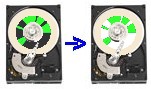
- The real image size is now determined at great speed without any writing on the hard disk being done and you may also be able to guess the expected run-time.
 |
3.4.3 "Washing" hard disk [Top Of Page] |
Procedure:
- Select "W" in the Function Menu
- A window with information will appear; If OK: Press RETURN;
- "Select drive" (Partition) will appear and "Please enter a drive letter". After selecting drive, press RETURN;
- the partition will be washed;
| Important
Note: If the drive to be washed is a compressed drive, then you need to deactivate the compression setting for the main directory (e.g. <drive>- Sub-directories may be set to compress function.
|
3.4.4 Information on hard disks connected [Top Of Page]
 |
With
Powercopy you may copy
several partitions at the same time. Make your selection in this case
via
Function "I" (Information on installed hard disks). After selecting a
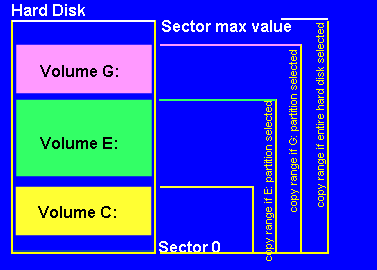
hard disk, the associated partitions will then be displayed. After this procedure, select the one partition up to which you wish to make your copy. The copying process always runs from Sector Zero up to the selected partition, e.g. if you have drive letters C, D and E, and you select Partition D, then drive letters C and D are copied at the same time (as 1:1 copy or as Image, depending on what you have selected). When restoring the partitions, they will be saved again in their original location. In this latter case, this would be drive C and D (refer also to Function key F1). |
 |
3.4.6: Shield hard disk file systems / Use two operating systems on different hard disks on same computer [Top
Of Page] ab Powercopy V2.1Rk
|
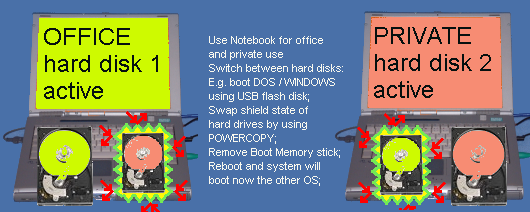
Example: You wish to use a notebook both for private and business purposes. In order to separate your private from your business matters, it is indispensable to operate two hard disks mounted within the computer. The first hard disk is for business and the second one represents your private system. With the aid of the switchable protective shield feature, you may render visible or hide the partitions of one or the other hard disk.
Procedure:
Start Powercopy
Select “I” for Information in the Function Menu. Press ENTER
The hard disk overview will appear;
Press “Ctrl” + F9; the protective shield function is thus activated;
Once again, the hard disk overview will appear; by using the arrow keys, select the hard disk upon which you wish to apply the protective shield and press ENTER, thus activating the function. At the beginning of the second line of the hard disk information, “Shield” will be shown for the drive. This hard disk is now protected by a protective shield. Thus no booting is possible from this hard disk.
In case you wish to switch off this function, the same procedure applies. This will result in the protective function being turned off and the word “Shield” will be replaced by the original text (change-over function).
In order to turn off a hard disk and to switch on another one, the procedure must therefore be carried out twice.
Make sure that the Master Boot Record is not protected in the BIOS.
This function may also be activated using the script file.
Example of application: Notebook with emergency hard disk! The second hard disk is to serve as a Backup of the first one. If hard disk (#1) fails, the reserve hard disk must be activated immediately.
Procedure:
A) Copy hard disk #1 onto hard disk #2 by using Powercopy (1:1 copy).
B) Immediately following the copying process (Important: Do not boot again), you must protect this hard disk # 2 by the use of the protective shield function .
The computer may now be booted as usual. Hard disk #2 is now protected in such a way that it will not be affected by the running operating system. If hard disk #2 fails, you can boot the computer by using the Powercopy BootCD, protect hard disk #1 and reverse the protection of hard disk #2. Now boot your system from the second hard disk. You may have to make an adjustment to this effect in the BIOS.
Important information:
Depending on the BIOS available, the corresponding boot disk must be set in the BIOS such as is the case in older systems, if it cannot be set by means of a Function key (F12 key in the Phoenix Bios) Example: Enter the hard disk from which you boot in the BIOS without application of the protective shield.
Make sure you perform a number of tests to see if the reversion takes place safely and automatically before you use this procedure.
4. How to Proceed in the Case of Defective Hard Disks/Defective File Systems [Top Of Page]
Please do so only by using the DOS BootCD. For experts only: As an alternative, you may also boot from a Windows XP-PE (XP-Preinstallaton Environment) or a BartPE CD or a second hard disk, followed by this type of backup.
5. Creating Your Separate Boot Floppy/CD [Top Of Page]
6.
Creating Batch Processes [Top
Of Page]
| Note: When using PC32.exe under NT4/200x/XP, an <ImageName>.job"-file will be created shortly before the dialog "Last chance to stop task" appears. You may use this file as basic file. By using parameter /imgf <Imagefilename> an image file name may be specified which may be used as a source(Img-To-Disk copy) or, depending on the configuration, as a target name (Disk-to-Image). Example command line usage: pc(32).exe /hdinfo <DRIVELETTER:\PATH\FILENAME.job> /imgf <DRIVELETTER:\PATH\FILENAME.000 |
Also check http://www.datapower.de/faq
7. Error Messages/Command Instructions [Top Of Page]
However, if this message appears as early as during the start of Powercopy, when using the DOS Boot CD and in conjunction with external drives, the cause may also be a USB/1394 driver/BIOS conflict. In this latter case, just connect the external drive after the Boot Menu has appeared.
Unfortunately the USB2.0 interface is so poorly designed that it will always be very difficult for USB2.0 device manufacturers to fabricate equipment that will function in all kinds of situations.
Therefore we would like to share with you our experience in connection with our Boot CD:
Notebook PCMCIA CARD: We highly recommend PCI USB2.0 Controllers with NEC chipset.
Conclusion: To save money on equipment may often mean frustration!
7.2 Formatting an external drive
Formatting an external drive under Windows 98SE und Windows ME
Windows 98SE: The FDISK Version which was installed with your operating system
is not capable to recognize hard disk sizes beyond 64 GB.
Windows 98SE/ME: Inaccurate display of large partitions, but the partitioning result
is OK.
Erasing a partition from external drive
"Start".-> "Run".->Enter "fdisk". Click OK. FDISK is started. Question: "Enable Large Disk Support?" Confirm by pressing RETURN. FAT32 is now activated. Select Option #5. (Change current fixed disk drive). Select the number of the hard disk to be erased. CAUTION: Make sure the correct drive is selected. Failing to select the correct drive may cause permanent loss of data! Select #3 (Erase Partition or logical DOS drive). Erase all partitions available. Normally only one is present. Continue to press ESC until you are back in the fdisk Main Menu. Select 1 (Create DOS partition or Logical DOS drive). Choose number 1 (Create Primary DOS Partition). Follow the instructions. Leave fdisk by pressing the ESC key. Deactivate external hard disk by clicking on the Windows Unplug or Eject Hardware Icon in the System Tray (lower right-hand side of screen) and disconnect the connecting cable to the external hard disk.
Re-connect the connecting cable. Perform formatting of the newly created partitions:
Double-click My Computer on the desktop . Select the unformatted drive. Open the Context Menu by right-clicking this drive icon. Choose "Formatting". You should enter "PoCpyExt" as the volume label.
Important! A drive formatted in this manner with the Powercopy >Version2.1Rg DOS BootCD will automatically be found! Beyond that an additional advantage is that you can identify it much easier under Windows. After having completed you selection, click "Start".
CAUTION: Selecting the wrong drive will cause permanent loss of data. Make sure you selected the correct drive. Confirm the next message by clicking on "OK".
After the formatting operation, you may check the drive using the ScanDisk function. The external hard disk is now ready for use.
Alternatives:
- Tip!:
You will find various images for different partition sizes in our
Download zone or inside the BoodCD, ranging from 80 to 120 160 250
320...to allow faster
formatting of external drives using Powercopy (Win 98/ME, Win2000/XP).
- If you are the owner of an external Iomega drive, you may use the "Iomega FAT32 Formatter.exe" file on your Iomega Solutions CD.
- Therefore it is advisable to use the Tool which may be part of you supply package of your external drive.
- Another alternative: Use Windows 98/ME
The copy functions available may be used in a number of different ways. Main applications may be as follows:
- Creating a backup of a hard.disk
to back up data and to ensure speedy work resumption by having a
backed-up hard disk or by starting from the hard disk.
- Cloning of master sample
installations for similar application PCs (for example: if you acquired
multiple licenses)
- Backups for Server
- When buying a new computer the data of the hard disk can be transferred completely onto the new computer. The old computer may also be used as an ideal backup computer for Image files. Image files may be saved on the old computer either by using the Function "PC direct cable connection" of Powercopy (Powercopy cable available only for the PRO-PLUS VERSION) or by installing a network interface card!
- Backing up hard disk, such as in the case of a Headcrash. Before trying to restore a file system with Recovery tools, it is absolutely essential that you back up the hard disk BEFOREHAND with Powercopy (1:1 or HD-> Image) using the BootCD. Thus the original status (before Recovery tool was put to action) may be used as the basis for a renewed restoration effort in case the Recovery tool fails!
Support E-Mail address: support-hotline@datapower.de
Datapower GbR, Florianweg 11, 86368 Gersthofen